
Short answer: Yes, one person can put a Grok Bot in Slack. A personal Bot connects to Slack from Connect apps and then reads and posts as you, only in channels you can already post in, and the messages it prepares wait as drafts until you send them. A good first job for it is the weekly search readout nobody likes writing: what moved in Search Console, why, and what to look at next.
Everything here comes from xAI's Grok Bot documentation and launch coverage, as of November 10, 2026. The product is in beta and changes weekly, so check the changelog before relying on a detail.
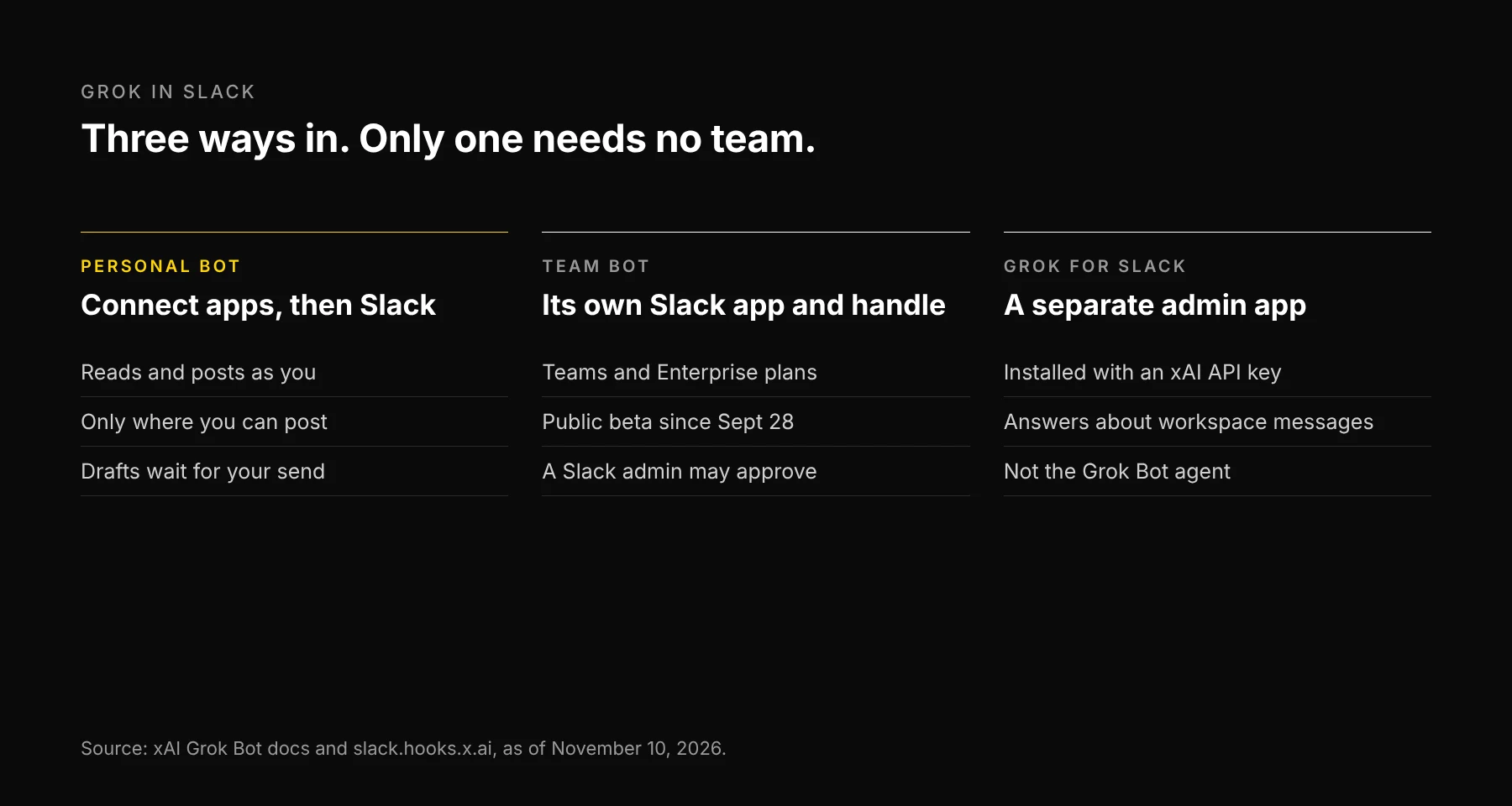
Three ways Grok gets into Slack
A personal Bot. Grok Bot is xAI's agent, in public beta since August 11, 2026, and each Bot works on its own cloud computer with a browser and app connections (Unite.AI). Add Slack in Connect apps and, in xAI's words, "the app posts as the Slack user you connected, not as a separate bot that has to be invited" (xAI, Use the computer and apps). No team plan needed.
A Team Bot. Team Bots went into public beta on September 28, 2026, on Teams and Enterprise plans (xAI). A Team Bot gets its own Slack app and handle. The owner or a Manager connects it with "Bring to your team's Slack", a Slack admin may need to approve it, and each teammate links their own Slack account (xAI, Shared Bots).
Grok for Slack. A separate app a workspace admin installs with an xAI API key, which answers questions about the workspace's messages and files (slack.hooks.x.ai). It isn't the Grok Bot agent.
Why the search readout is a good first job
It's a routine with a fixed shape, it runs when you aren't looking, and it ends in a channel where people already talk about the numbers. Grok Bot routines can run on a schedule or start from a Slack message that matches a phrase (xAI, Skills and routines), and the Bot can use its browser to open the tools you sign it into.
It's also a job where a draft is the right output. You know which drop was a tracking change and which was real. The Bot doesn't.
The routine, step by step
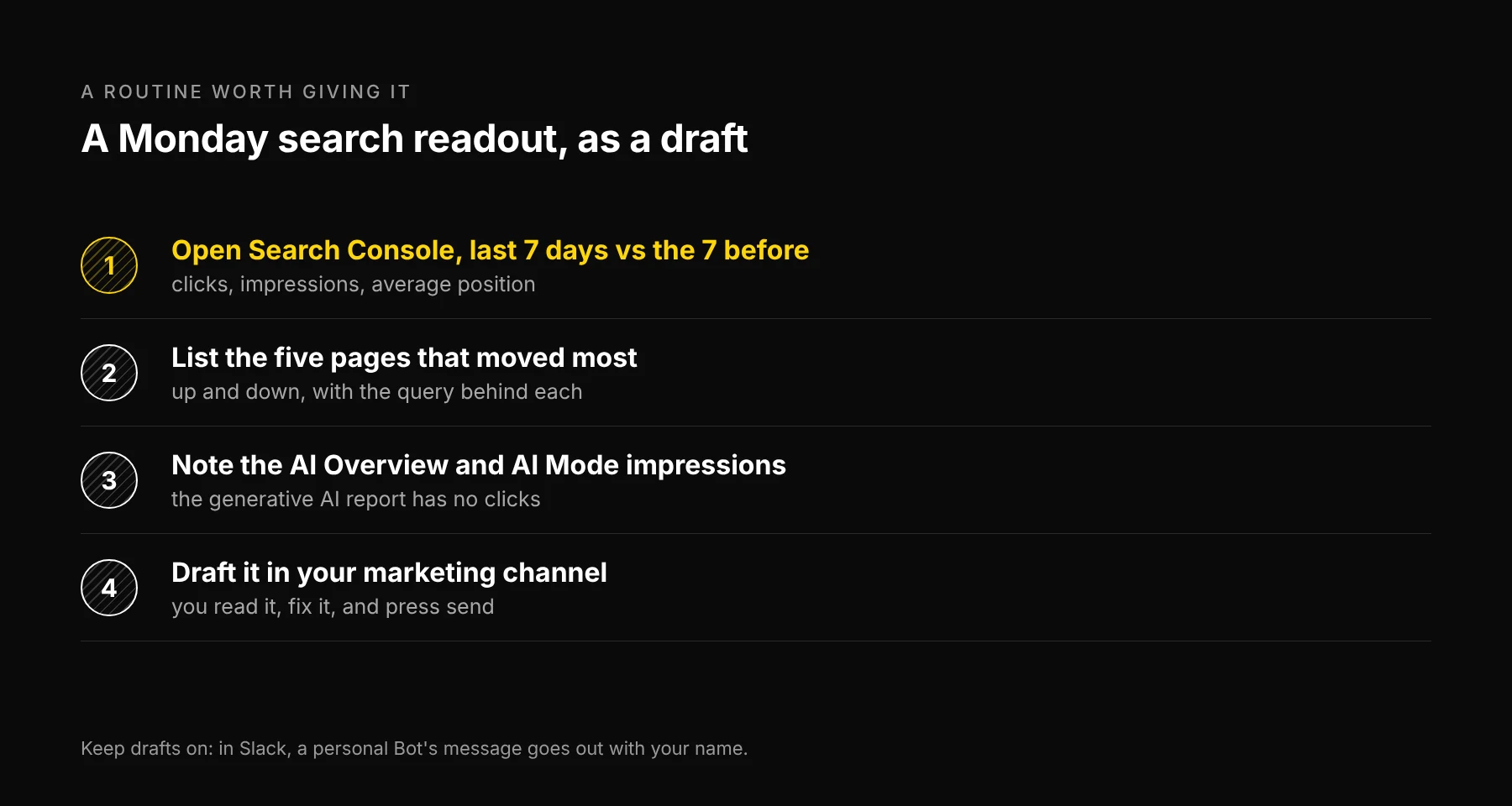
- Compare two weeks. In Search Console's Performance report, the last 7 days against the 7 before: clicks, impressions and average position.
- Name the five pages that moved most, up and down, with the query that moved each one. A page without its query isn't actionable.
- Add the AI answer line. Search Console's generative AI report shows impressions in AI Overviews and AI Mode, with no clicks (how to read it). Report it as impressions, not traffic.
- Draft it in one channel. Ask for five lines at most, the biggest change first. Read it, fix what it got wrong, then send.
Write it as one instruction, for example: "Every Monday at 9, compare the last 7 days of Search Console with the 7 before, list the five pages that moved most with their queries, add the generative AI impressions, and draft five lines in #marketing." If you use Ezeo, its Weekly report already lays out every Monday what changed in Search Console, rankings and AI citations, so the Bot can read that page and summarise it instead of doing steps 1 and 2.
What to keep out of the Bot
It speaks with your name. A personal Bot's message in a shared channel is your message. Keep drafts on, which is the default, until you've read a few weeks of them.
Connections are account-wide. xAI's docs say an app you connect is available to every Bot you run. XMTP Labs CEO Shane Mac described a Grok Bot posting his bank balances in a company Slack channel and said another Bot held the Slack access; his account hasn't been independently verified (Let's Data Science). Don't run a work reporting Bot on the account that holds your personal finances.
Give it read access only. It needs to read Search Console, not change settings, submit sitemaps or remove URLs. Sign it in with a user who has restricted permission on the property.
Team Bots use their owner's apps. In Slack channels, a shared Bot uses only its owner's apps and asks before it uses yours (xAI, Approvals, security and privacy). If you publish your readout Bot to the team, the owner's Search Console access is what everyone's questions reach.
Does Ezeo track Grok's answers?
Not today. Ezeo checks ChatGPT and Perplexity, plus Google's AI Overviews, every week, and Grok was dropped as a measured surface in September 2026. Putting Grok Bot in your Slack is about your team's workflow, not about whether Grok recommends you. For that, see our comparison of AI visibility tools.
Frequently asked questions